

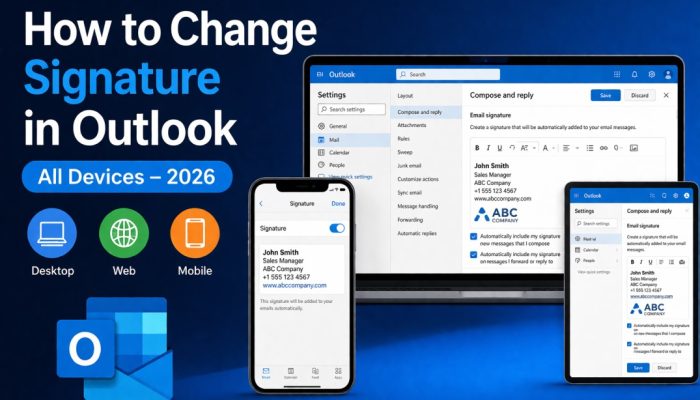

Your email signature is often the last thing people see in your message, but it plays a big role in how professional you look. A clean, consistent signature builds trust, reinforces your brand, and makes it easy for people to contact you. The problem? Updating it in Outlook isn’t as simple as most people expect. If you’ve ever changed your signature on one device and noticed it didn’t update anywhere else, you’re not alone. This guide breaks down how to change your signature in Outlook across desktop, web, and mobile without confusion. You’ll also learn why signatures don’t sync and how to keep everything consistent moving forward.
Why Your Outlook Signature Isn’t the Same on All Devices
Many users assume their signature syncs automatically between desktop, web, and mobile. However, Outlook stores signatures differently across platforms.
Here’s how it works:
- Outlook Desktop stores signatures locally on your computer
- Outlook Web saves signatures in cloud settings
- Outlook Mobile uses separate signature settings
Because of this, your Outlook signature on all devices must be set up manually on each platform. That’s why your signature might look different on your laptop, browser, and phone.
Understanding this is important before you start updating your signature.
How to Change Signature in Outlook Desktop (Windows & Mac)
If you use the Outlook desktop application, this is the most common method. The steps are similar on both Windows and Mac.
Follow these steps to change the Outlook signature desktop:
- Open Outlook
- Click File
- Go to Options
- Click Mail
- Click Signatures
- Select an existing signature or create a new one
- Add your text, logo, or links
- Set default signature for new emails and replies
- Click Save
When creating your signature, keep formatting simple. Complex formatting may not display correctly on mobile devices or web email.
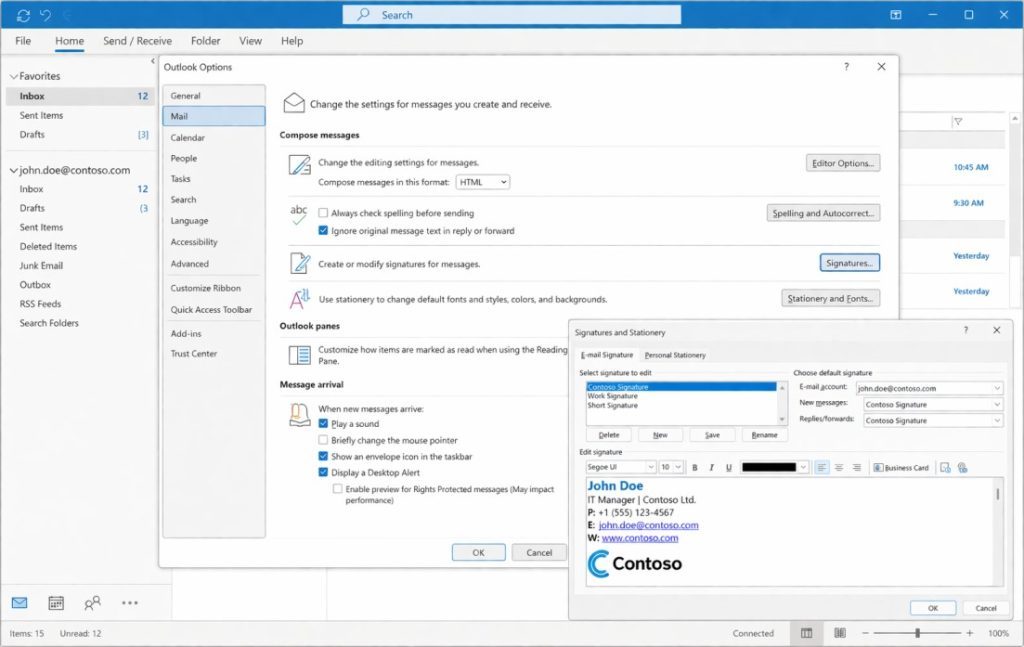
You can include:
- Your name
- Job title
- Company name
- Phone number
- Website link
- Company logo
This ensures your emails look professional and consistent.
How to Change Signature in Outlook Web (Outlook 365)
If you mainly use Outlook on your computer, this is where you’ll have the most control over your signature. The desktop version allows you to add images, links, and detailed formatting that may not work elsewhere.
Follow these steps for Outlook Web signature setup:
- Go to Outlook Web in your browser
- Click the Settings (gear icon)
- Click Mail
- Select Compose and Reply
- Edit your email signature
- Enable automatic signature for new emails and replies
- Click Save
This method is useful if you work from multiple computers because Outlook Web saves your signature in the cloud.
However, remember that this still does not sync automatically with desktop Outlook.
How to Change Signature in Outlook Mobile (iPhone & Android)
If you send emails from your phone, you also need to update your Outlook mobile signature separately.
Follow these steps:
- Open the Outlook app
- Tap your profile icon
- Go to Settings
- Tap Signature
- Edit your signature
- Save changes
Mobile signatures are usually plain text only, which means logos and complex formatting may not appear correctly.
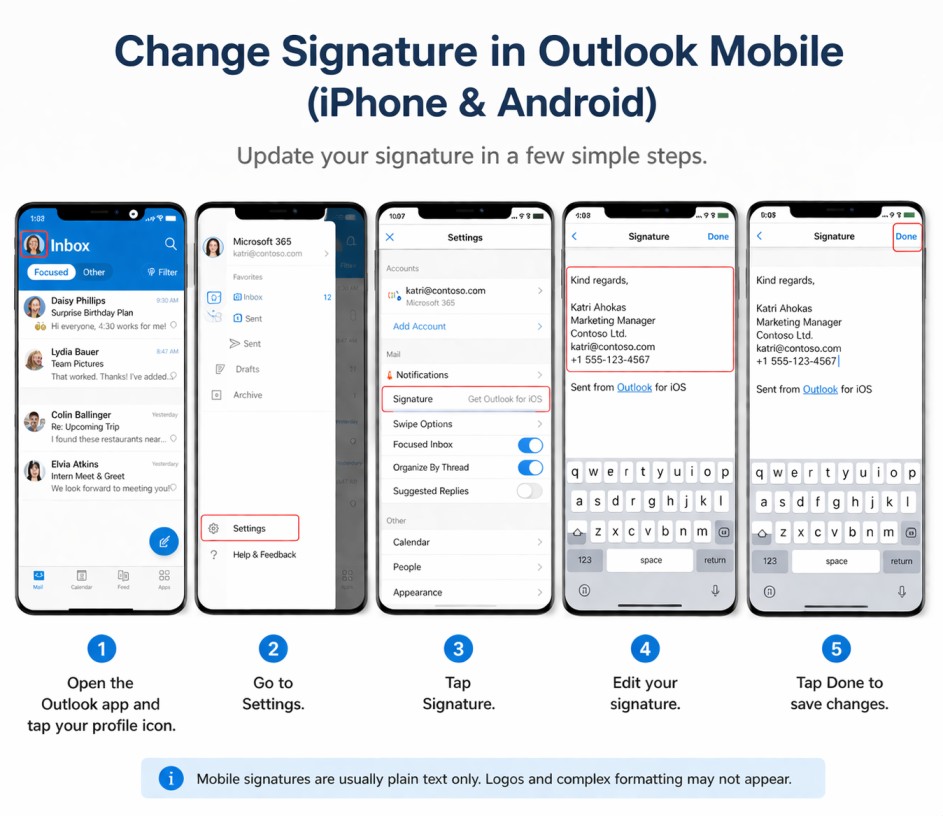
Simple mobile signature example:
John Smith
Sales Manager
ABC Company
+1 555 123 4567
www.abccompany.com
Keeping it simple ensures your signature displays properly on all mobile devices.
Outlook Signature: Desktop vs Web vs Mobile
Understanding the differences between platforms helps you manage your signature better.
| Platform | Features | Best For |
| Desktop | Full formatting, images, logos | Professional email setup |
| Web | Accessible anywhere | Working from multiple computers |
| Mobile | Simple text signature | Sending emails from a phone |
Summary:
- Desktop → Full control
- Web → Accessible anywhere
- Mobile → Limited formatting
This comparison helps you decide where to create your main signature.
How to Use the Same Signature on All Devices
If you want professional consistency, consider using our managed IT services to streamline email setup across your organization.”
Best method for Outlook signature on all devices:
- Create your signature once
- Copy and paste it into Desktop Outlook
- Copy and paste it into Outlook Web
- Copy and paste a simplified version into Outlook Mobile
- Keep formatting simple
- Avoid large images or complex HTML
This ensures your signature looks similar across desktop, web, and mobile.
Consistency is important for branding and professionalism.
Common Outlook Signature Problems (and Fixes)
Signature Not Updating
If your signature is not updating:
- Restart Outlook
- Re-save your signature
- Check default signature settings
- Make sure the correct signature is selected
Often, the issue is that the signature is not set as the default for new emails or replies.
Formatting Looks Broken
If formatting looks incorrect:
- Avoid complex HTML formatting
- Use basic fonts like Arial or Calibri
- Resize images properly
- Recreate the signature instead of pasting from Word
Simple formatting works best across all devices.
Signature Missing on Replies
If your signature appears in new emails but not replies:
- Go to Signature settings
- Assign signature to Replies/Forwards
- Save changes
This is a very common issue and is easy to fix.
Best Practices for a Professional Outlook Signature
A good email signature should be clean, simple, and professional. Avoid making it too long or cluttered.
Follow these best practices:
- Keep it 3–5 lines
- Include your name and job title
- Add phone number
- Add company website
- Include the company logo
- Use simple fonts
- Avoid large images
- Keep colors minimal
A professional signature improves branding and makes your emails look more trustworthy.
FAQs
Why is my Outlook signature not syncing?
Outlook signatures do not sync automatically across devices. You must manually update the signature on desktop, web, and mobile separately.
Can Outlook sync signatures automatically?
No, Outlook does not sync signatures by default. Some Microsoft 365 accounts may have roaming signatures, but manual setup is still recommended.
How do I set a default signature in Outlook?
Go to File → Options → Mail → Signatures, then assign your signature to new emails and replies.
Why does my signature disappear?
Your signature may not be set as the default, or the formatting may not be supported on mobile or web versions of Outlook.
Conclusion
Learning how to change your signature in Outlook is important if you send emails regularly for work or business. The main thing to remember is that Outlook signatures are stored separately on desktop, web, and mobile. Once you update your signature on each device and keep formatting simple, your email signature will stay consistent and professional everywhere. By following this guide, you can easily manage your Outlook signature on all devices and avoid common signature problems in the future. Need help? Contact us for personalized support or guidance.